Hardware and software — Hardware is the physical equipment; software comprises programs and related instructions used by the system. A keyboard, processor and storage device are hardware, while an operating system and drawing application are software. They work together: installing an application cannot add a physical sensor that the device does not possess.
Input, processing and output — Input brings data in; processing uses it; output communicates or acts on a result. A temperature sensor measures an input. A program compares it with a threshold, a chosen boundary such as 25 degrees. An actuator, a component that produces a physical action, can switch on a fan. Storage keeps data for later. A touchscreen is both input and output, so one device can have several roles.
Processor, memory and storage — The processor carries out instructions. Main memory holds instructions and data currently in use; typical RAM, random access memory, loses its contents when power is removed. Secondary storage, such as a drive, retains programs and files for later. More storage capacity means room for more data, not automatically faster calculations. Capacity, processing speed and how quickly data can be accessed are different properties.
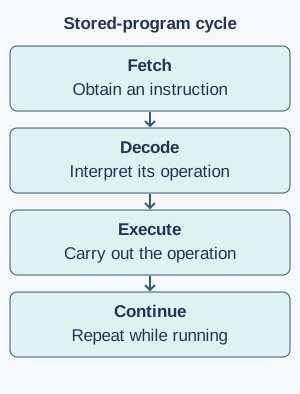
Stored instructions — A stored-program computer holds instructions in memory as binary patterns, alongside data. The processor repeatedly fetches an instruction, decodes what operation it specifies and executes it, updating state as required. This fetch–decode–execute model simplifies real processors but explains why both program instructions and data must be represented and accessed by the system.Simplified stored-program cycle: fetch an instruction, decode its operation, execute it and repeat for subsequent instructions while the program continues. Full-size diagram
Communication within a system — A peripheral is equipment connected to a computer, such as a keyboard. When a key is pressed, data passes through system connections and controllers so the computer can process it. An interface is an agreed way for components to connect and communicate. They need matching signals, standards and software support. A plug fitting a socket alone does not guarantee that every function will work.
Operating systems and applications — An operating system manages resources, files, devices and interactions between programs and hardware. Applications perform user tasks such as editing a document or analysing a table. Saving in an application relies on underlying file and storage services. A crash in one program does not necessarily mean every stored file or physical component has failed.
Networks and services
Networks and the internet — A network connects devices so they can exchange information and share resources. The internet is a network of networks using agreed communication protocols; the World Wide Web is one service using it. Email, file transfer and web pages are not identical services. A local network can operate without a working connection to the wider internet.
Clients, servers and roles — A client requests a service and a server provides one, such as a web page or shared file. These describe roles rather than fixed sizes of computer; one device can have several roles. If a server or network connection is unavailable, a client may be unable to access remote content even when the client device itself is functioning.
Packets and protocols — Data sent across a network is commonly divided into packets carrying pieces of content and addressing information. Protocols define rules for communication so systems can interpret messages. Packets may pass through several devices before reaching a destination. A useful model distinguishes the message content from information needed to deliver and reconstruct it.
Addresses and names — An IP address helps identify a network connection so data can reach the right place. A domain name is a name people can remember. DNS, the Domain Name System, helps look up the addresses associated with such names.
Reading a URL — A URL locates a resource. In the invented URL https://example.org/books/list.html, https is the scheme describing how to access it, example.org is the host name and /books/list.html is the path. A resource’s path and a computer’s network address do different jobs. Changing one does not automatically mean changing the other.
Switches, routers and wireless access — A switch connects devices within a network, while a router forwards traffic between networks. A wireless access point allows compatible devices to join using radio. Home equipment often combines these functions in one box, so a familiar product label may hide several roles. Wireless connection quality and internet availability are distinct possible causes of a failed download.
Bandwidth and latency — Bandwidth is how much data a connection can carry in a given time. Latency is the delay before data reaches its destination. More bandwidth can help download a large file, while delay can still make conversation awkward during a call. Congestion means too much traffic competing for available capacity. Devices and servers matter too, so an advertised maximum speed does not guarantee the same result for every service.
Security and troubleshooting
Threats and protection — Malware is software designed to cause harm or misuse access. Phishing tries to trick people into giving information or doing something unsafe. Updates repair known problems; careful permissions limit access; strong, unique passwords reduce account risk. School-approved additional authentication asks for another check beyond the password, such as an approved sign-in confirmation. These protect against different risks; combine them with careful behaviour and school reporting arrangements.
Access control and backups — Access controls restrict who can read or change resources. Give only the permissions needed for a task and review sharing settings. A backup is a separate recoverable copy, not merely a shortcut to the original. Test restoration with suitable fictional work; synchronising a deletion to every device may remove copies rather than provide an independent recovery history.
Encryption and trust — Encryption transforms data so it cannot normally be read without the appropriate digital key. It protects confidentiality, keeping information private, while stored or travelling between systems. It does not prove a recipient is honest or the message is true. A deceptive website can still use an encrypted connection. Check who is requesting information and why, as well as whether the connection is secure.
Diagnosing a problem — Separate symptoms from causes and test simple hypotheses safely. If only one website fails, check whether other sites and local files work before blaming all hardware. Record the exact error and recent changes, then use approved support routes. Do not disable school security, install unknown fixes or expose private logs simply to make a warning disappear.
Test yourself
50 questions · Random sets of 10. These quick checks support revision; practise longer explanations and justified judgements too.
Mind map
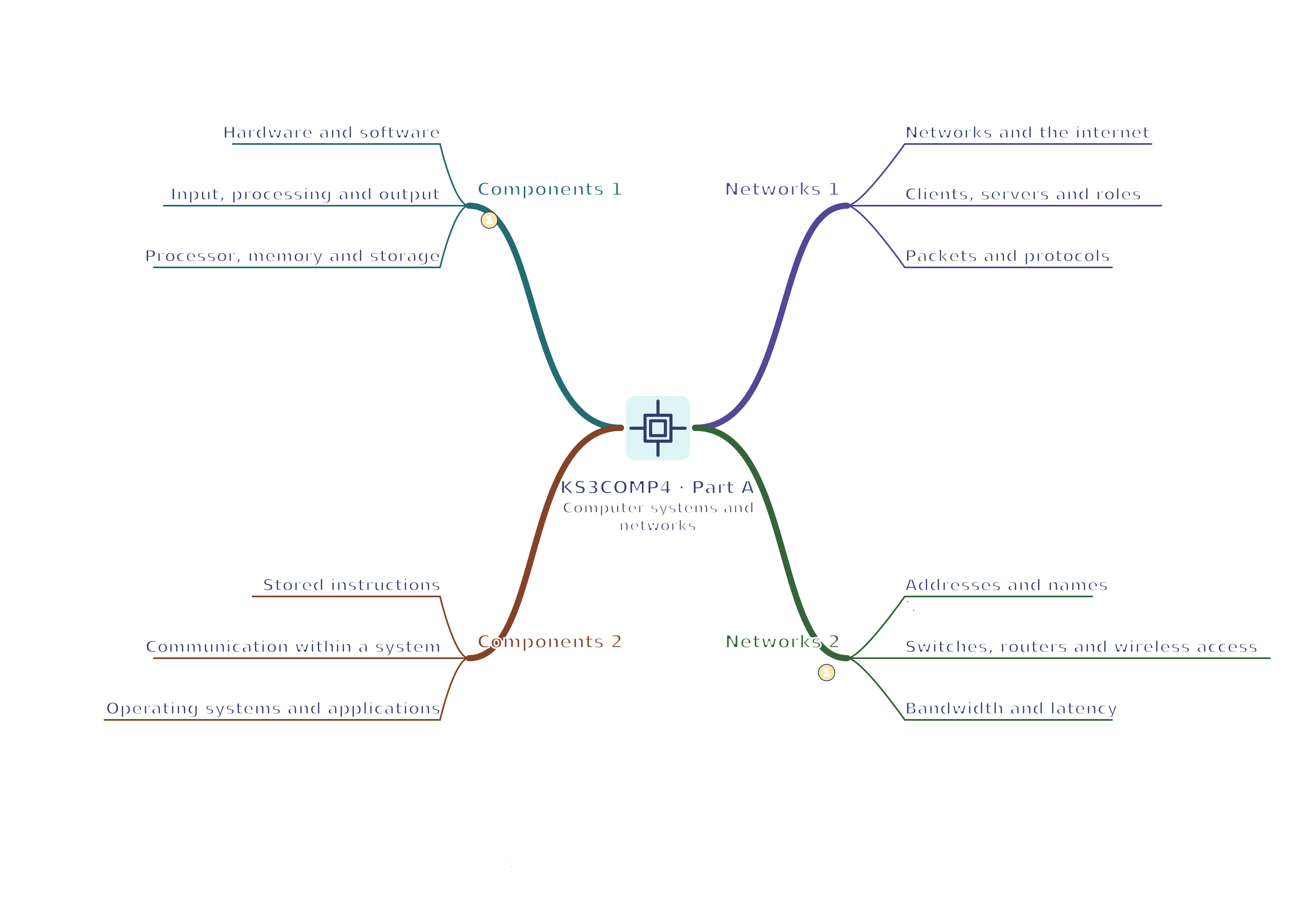
Use the branches to recall the ideas and explain their connections. Check the revision notes for the full detail.
KS3COMP4 · 1
View KS3COMP4 · 1 mind mapOpen the full-size map to zoom. Use the printable view for A4 landscape or enlarge to A3.
 Mr Kidman's Classroom