Mr Kidman's Classroom


Revise the key ideas
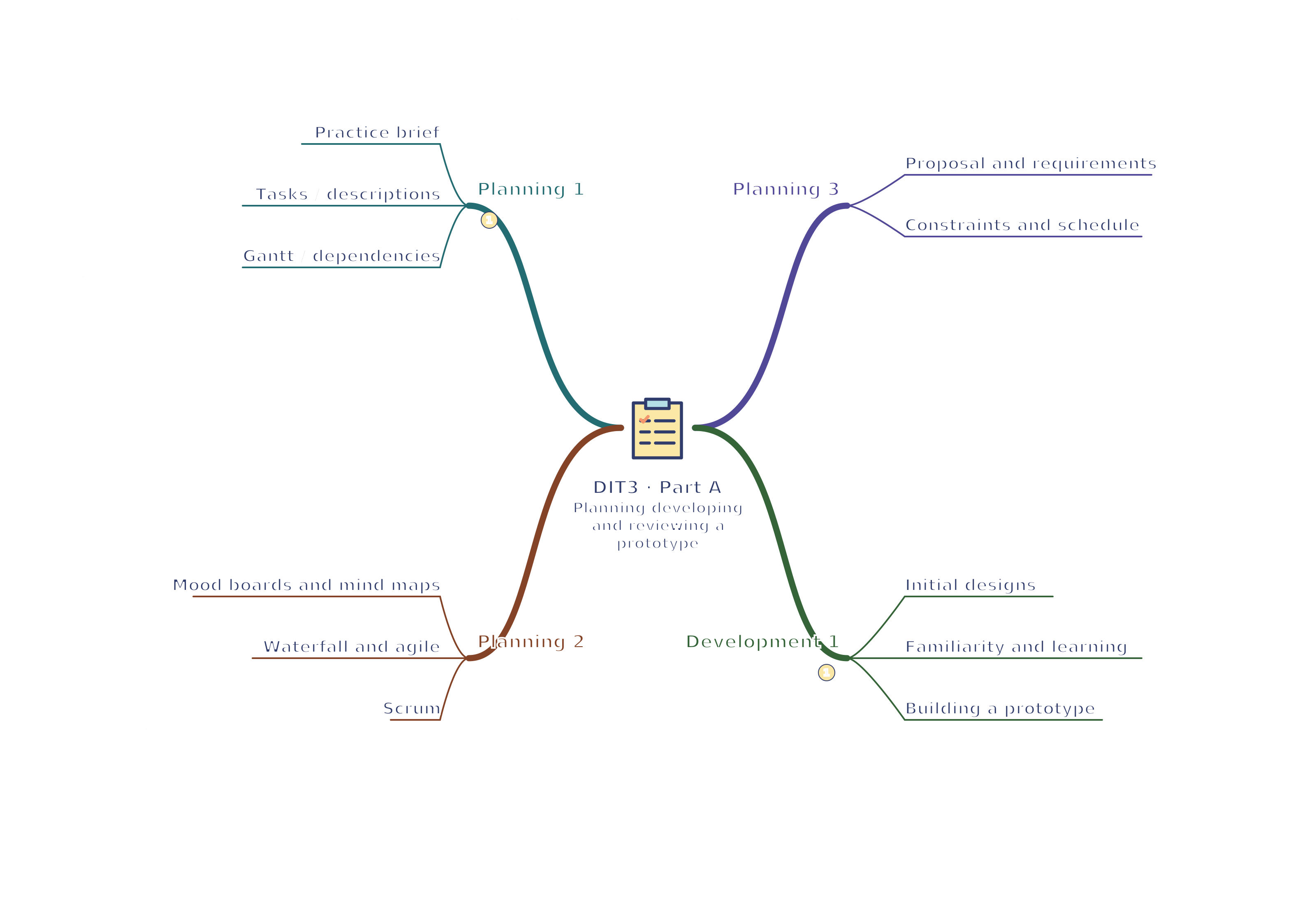
Planning a project
- Practice brief — Original practice context: Harbour Pool needs a booking prototype for occasional visitors and reception staff. Users choose a session, enter contact details, review the price and view confirmation. Include keyboard access and readable text. This is fictional lesson practice, not a Pearson assignment, assessment template or prediction of a future brief.
- Task lists and descriptions — Break the project into actions with deliverables, owners and completion checks. Written descriptions explain a task; graphical descriptions show its relationships. Design screens is too vague: identify layouts, navigation, inputs and access features. A checked task should have evidence, such as an annotated design, rather than merely time spent.
- Gantt charts and dependencies — A Gantt chart places task bars against time. Dependencies identify work that must happen first; milestones mark important checkpoints with no duration. If the review depends on a working prototype, delaying development can delay review. Allow time for testing and changes, and update the plan when actual progress differs.
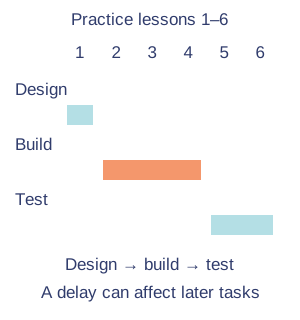
Example schedule and dependency. Original illustration. Open full-size diagram - Mood boards and mind maps — A mood board collects visual ideas such as colours, typography and textures; explain their suitability rather than copying a product's design. A mind map organises ideas and relationships, such as audience needs and features. Neither replaces a timed plan: a collection of attractive images does not show who will finish each task.
- Waterfall and agile — Waterfall progresses through planned stages, with later work depending on earlier outputs; it helps when requirements are stable but late changes can be costly. Agile develops and reviews in small increments, using feedback to adjust priorities. Agile still requires planning and evidence. Choose an approach for uncertainty, time and the client's availability.
- Scrum — Scrum is an agile framework with a prioritised backlog, short time-boxed sprints, review and reflection. A product owner prioritises value; a Scrum Master supports the process; developers produce the increment. A small school project can practise these ideas without pretending to have a full commercial team. A daily check identifies progress and blockers.
A backlog is an ordered list of work to do. A sprint is a fixed period for selected work; an increment is the usable addition produced, such as a working session-selection screen.
- Proposal and requirements — State purpose, audience and measurable user requirements before choosing appearance. Specify inputs such as touch, keyboard or voice and outputs such as visual confirmation, audio or haptic vibration. Distinguish a requirement from a design choice: users must see the total price is a need; a navy price box is one implementation.
- Constraints and schedule — Record time, hardware/software resources, dependencies and security constraints. Work backwards from a deadline, giving subtasks realistic durations and checkpoints. In a fictional six-lesson project, reserve the final lesson for review and corrections rather than allocating all six to screen building. Do not assume this practice schedule is a live assessment allowance.
Designing and developing
- Initial designs — Sketch or storyboard each screen with labels, text, controls, inputs, outputs and navigation destinations. Annotate how choices meet specific users' access needs. Include hardware and software requirements. A drawing of four attractive rectangles is not a design specification if it leaves input rules and the user journey unexplained.
- Familiarity and learning — Reuse layout, icons and terminology across the prototype so users gain confidence and learn it quickly. Group steps in a sensible order and minimise specialist knowledge. At Harbour Pool, explain lane swim rather than assuming every visitor knows it. State how design choices reduce task time and help users focus.
- Building a prototype — Use suitable presentation, design or development software to implement the planned screens and navigation. Create working controls for the intended prototype level, using consistent styles and clearly labelled dummy data. A linked presentation can demonstrate navigation but cannot prove that a payment system works. Explain the prototype's limits honestly.
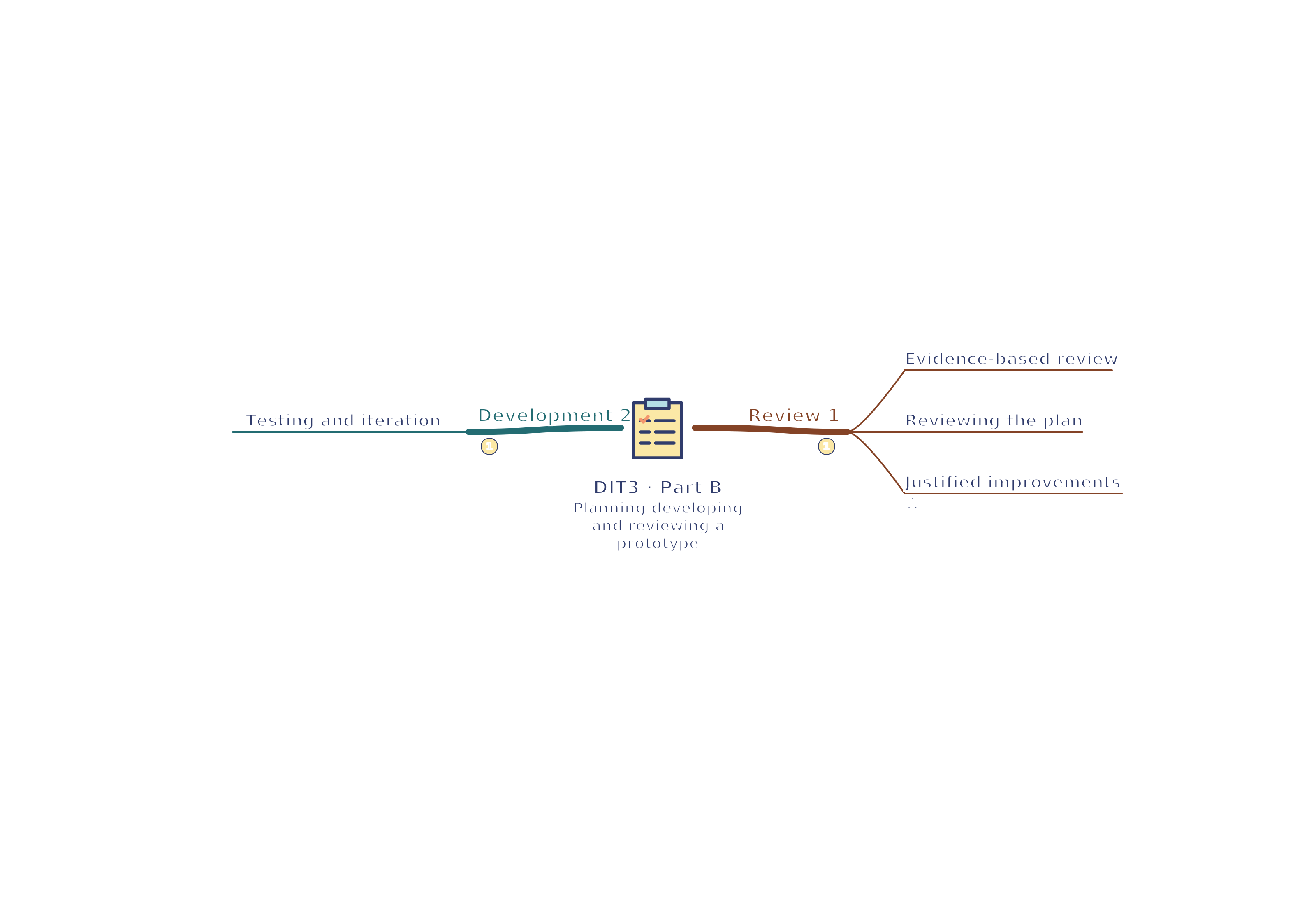
- Testing and iteration — Prepare a test table with requirement, action, expected result, actual result, evidence and correction. Check normal, missing and unsuitable inputs where supported; test links, Back, keyboard access and different displays. Ask users to complete tasks rather than merely say whether they like the colours. Retest after changes and keep versions of important evidence.
Reviewing outcomes
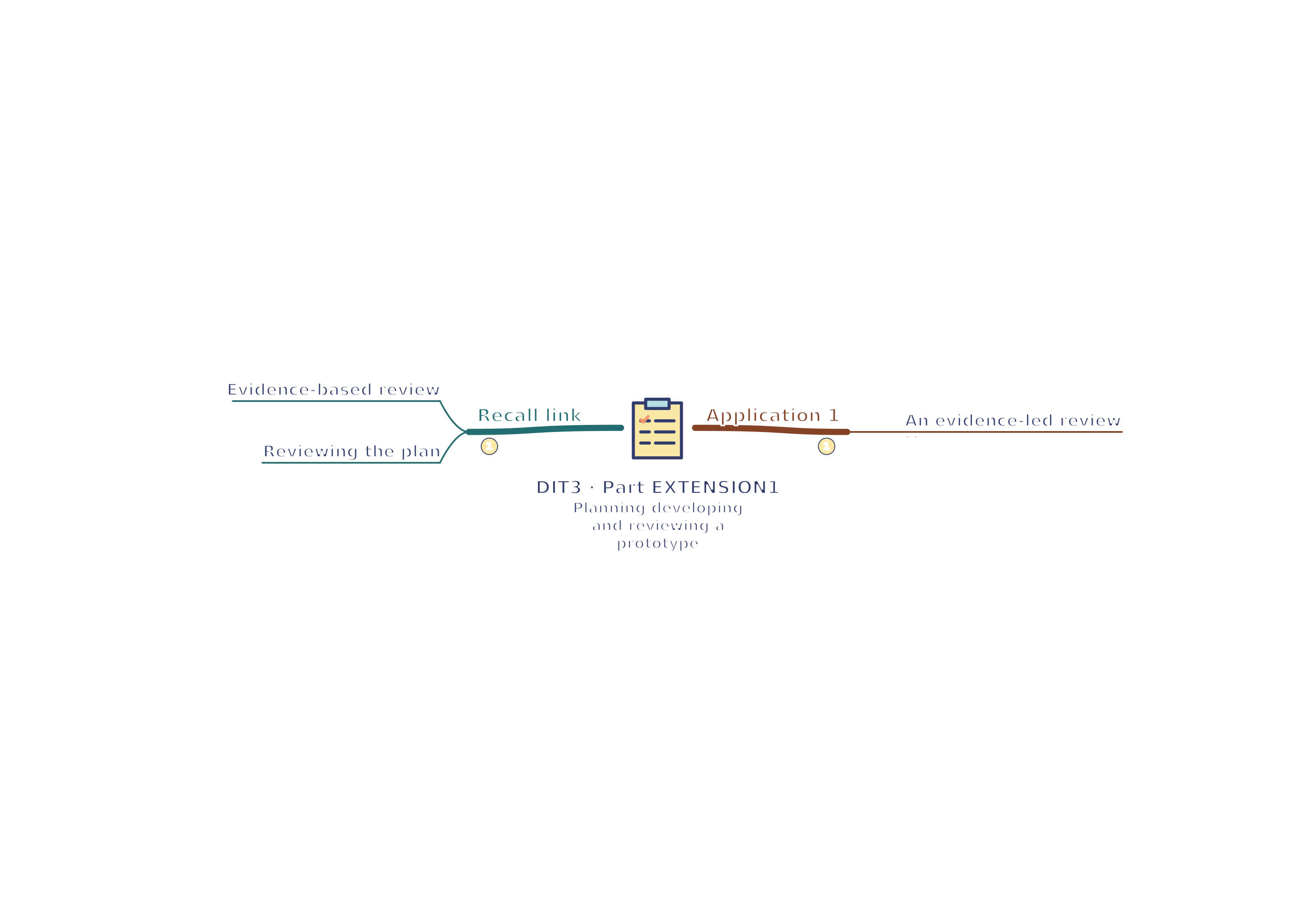
- Evidence-based review — Compare the prototype against each requirement, purpose, audience, ease of use, access features and design principles. Use evidence such as a failed link or observed difficulty; distinguish genuine observations from hypothetical predictions. Explain strengths and weaknesses and their effects. It looks professional is too vague to establish usability.
- Reviewing the plan — Compare scheduled and actual completion, identify bottlenecks and explain whether the chosen tools and methodology helped. If testing was rushed because screen design overran, revise task estimates and add a testing milestone. Finishing on time does not alone establish that the plan used resources well or met user needs.
- Justified improvements — Prioritise an improvement by linking a weakness, proposed change and expected user benefit. For example, replace three tiny unlabeled icons with larger labelled controls to reduce mistaken selection. Explain trade-offs such as screen space, development time or added steps. Make improvements specific enough to implement and test.
Reviewing outcomes
- An evidence-led review — Requirement: a visitor can complete a booking using only a keyboard. Test by moving through every input and control without a mouse, checking visible focus, order and error recovery. If the confirmation button cannot receive focus, record the failure, change the implementation and repeat the whole journey. This supports a specific judgement about access. A questionnaire saying the colours look attractive cannot establish that the keyboard requirement was met, and a proposed improvement is not evidence that it has already worked.